Does Wii Play Blu-ray? How to Play Blu-ray Movies on Wii/Wii U?

Summary: The Nintendo Wii and Wii U cannot play Blu-ray discs natively. These consoles lack the blue-violet laser hardware and licensing stacks required for high-density movie playback. To watch your movies, use DVDFab Blu-ray Ripper to decrypt the content and FFmpeg to transcode it into a Wii-compatible Motion JPEG format.
Table of Contents
If you're asking "does Wii play Blu ray", the short answer is no. The original Wii cannot play Blu-ray discs, and the Wii U cannot play Blu-ray movies either. I know why this question keeps coming up: if you already have a Wii under your TV, it feels natural to hope it can double as a movie player. In this guide, I'll explain what the Wii can actually do, why Blu-ray playback is not supported, and what your most practical workaround looks like if you still want to watch Blu-ray content on a Wii.
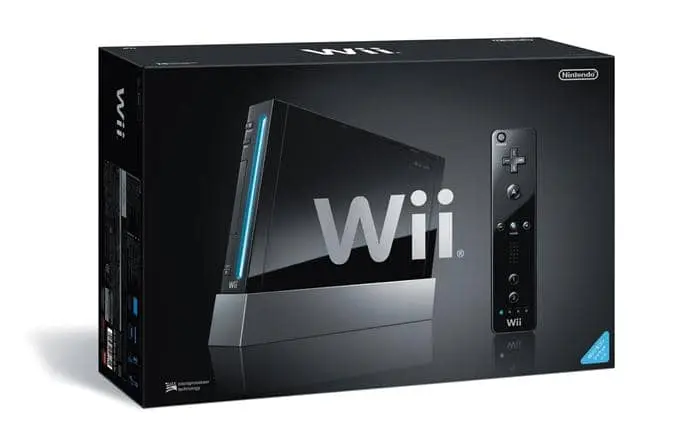
Does Wii Play Blu-ray Movies?
No, the Nintendo Wii does not support Blu-ray playback. The internal optical assembly was engineered for proprietary game discs, lacking the hardware components and system-level software required to decode high-density Blu-ray media.
- Laser Wavelength Disparity: The Wii utilizes a red laser designed for DVD-based media. Blu-ray discs require a 405 nm blue-violet laser to read their significantly smaller pit sizes. Because the Wii’s laser cannot focus on a Blu-ray's data layer, the hardware is physically incapable of reading the disc.
- Absence of Media Licenses: Nintendo omitted the necessary licensing and protection stacks, such as AACS for Blu-ray or MPEG-2 for DVD, to minimize console production costs. As a result, the Wii does not officially support playback for commercial movie discs, CDs, or HD-DVDs.
- Transcoding Requirements: While unofficial modifications like Homebrew can enable DVD playback on specific older drive revisions, they do not grant the console native Blu-ray support. To view Blu-ray content, the media must be transcoded on a computer into a Motion JPEG AVI or MOV file compatible with the Wii Photo Channel.
💡Note: The Wii U follows similar architectural restrictions. It supports only Wii and Wii U game discs and does not play Blu-ray movies, DVDs, or CDs.
How to Play Blu-ray Movies on Wii/Wii U?
The Wii and Wii U do not play Blu-ray discs natively. If you still want to watch a Blu-ray movie on a Wii, the practical method is to rip Blu-ray into a digital video file first, then convert that file again into a Wii-compatible format such as Motion JPEG AVI or Motion JPEG MOV.
Step 1: Rip Protected Blu-ray to Digital File with DVDFab Blu-ray Ripper
DVDFab Blu-ray Ripper functions as a decryption and extraction engine. It utilizes a Cloud Decryption Service to bypass modern copy protections, allowing you to convert encrypted physical media into unprotected digital formats like MKV, MP4, AVI, and more. You can also edit the Blu-ray movies with its built-in video editor.
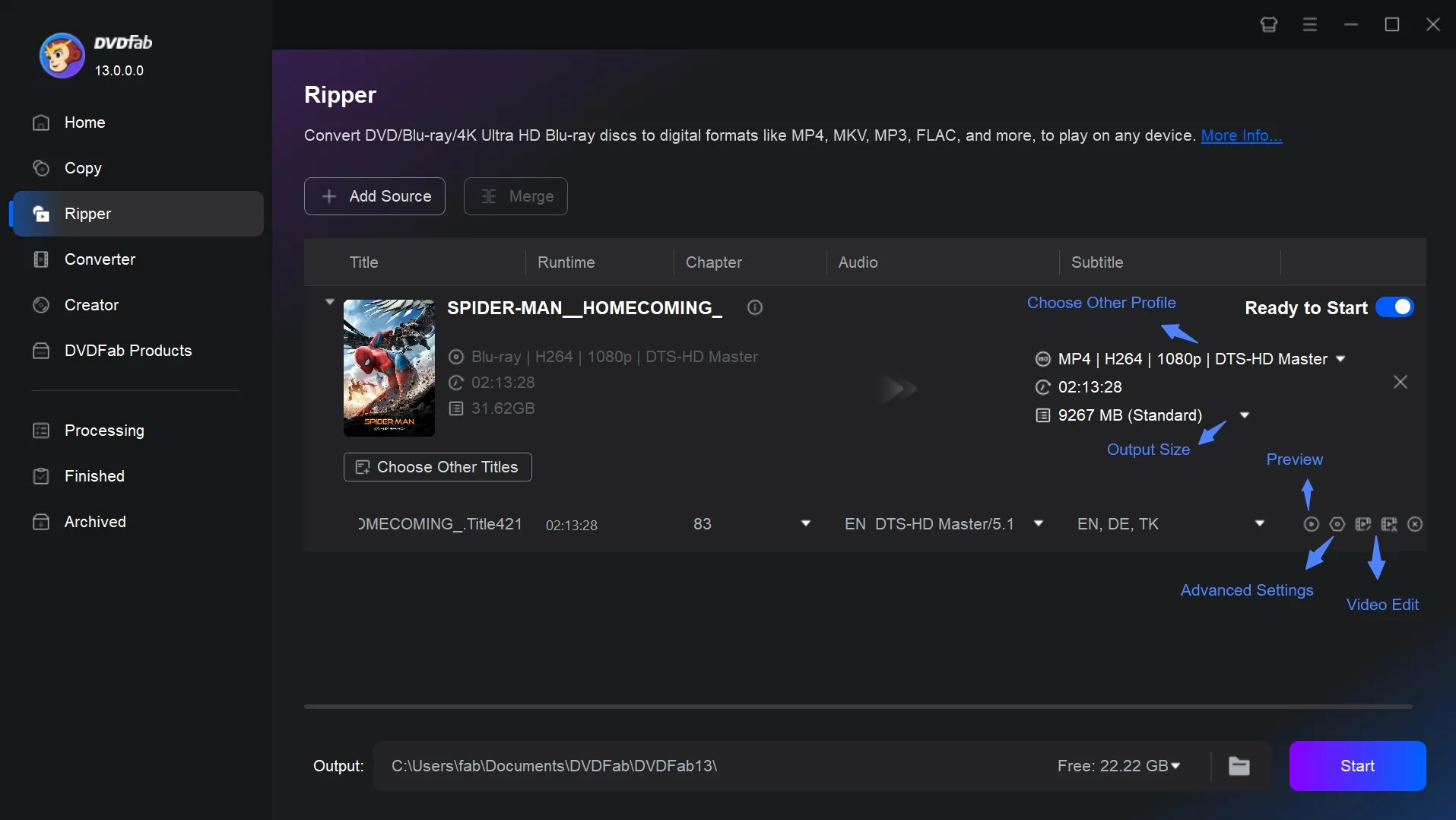
1. Launch DVDFab Blu-ray Ripper and select the Ripper module. Then insert your Blu-ray disc or load an ISO/folder.
2. Choose the specific movie titles, audio tracks, and subtitles you want rip.
3. Click "Choose Other Profile" and select MKV.Passthrough. This maintains original video quality for the subsequent transcoding step. Then, click the "Start" button to begin the conversion.
Step 2: Convert Ripped Blu-ray to Wii-Compatible Format with FFmpeg
After ripping the disc, you need a video conversion tool to turn the file into a format the Wii can read. FFmpeg is a free command-line program for audio and video conversion, and it is widely used for format, codec, and resolution changes.
1. Download and install FFmpeg on your computer. Confirm the installation by typing ffmpeg -version in a terminal. Then, place the input.mkv and subtitle files in the same folder.
2. Convert it to Motion JPEG AVI with a Wii-friendly resolution.
- For 16:9 Widescreen Movies: Use the following command in your terminal or command prompt to convert it to an AVI file with a resolution of 854x480 (which matches standard definition widescreen):
ffmpeg -i input.mkv -vf "scale=854:480:force_original_aspect_ratio=decrease,pad=854:480:(ow-iw)/2:(oh-ih)/2,fps=30" \
-c:v mjpeg -q:v 3 -pix_fmt yuvj422p \
-c:a pcm_s16le -ar 48000 -ac 2 out_mjpeg_854x480.avi
- For 4:3 Standard Definition Movies: If your movie is in 4:3 aspect ratio, use this command to convert and scale the video to 640x480 resolution (standard 4:3 SD):
ffmpeg -i input.mkv -vf "scale=640:480:force_original_aspect_ratio=decrease,pad=640:480:(ow-iw)/2:(oh-ih)/2,fps=30" \
-c:v mjpeg -q:v 3 -pix_fmt yuvj422p \
-c:a pcm_s16le -ar 48000 -ac 2 out_mjpeg_640x480.avi
3. Copy the resulting AVI file onto an SD card or USB drive and then insert the SD card or USB drive into your Wii. Open the Wii's Photo Channel, now you can browse to your video file and play it directly.
Extra Tips: Is Homebrew Worth It?
Some users look into Homebrew tools such as WiiMC, and I understand why. WiiMC supports media playback from sources such as USB, DVD, SMB, and FTP, which makes it sound much more flexible than the Wii’s official media features.
But there is a catch, and it is an important one. WiiMC’s own documentation says DVD playback depends on having an older DVD drive, because Nintendo removed support for video commands in newer drives. The documentation adds that some Wiis purchased in 2009, and those purchased in 2010 onward, do not support DVD video mode. That means Homebrew is not a universal fix, and it is definitely not the same thing as native Blu-ray support.
So, if you already understand the trade-offs and specifically want to experiment with your console, Homebrew is worth it. If you just want the least complicated path, converting a movie into a Wii-compatible file is usually more predictable than changing the console setup.
FAQs
No. The Wii U does not play Blu-ray movies either. Nintendo says the Wii U supports Wii U and Wii Game Discs. It also says that GameCube discs, Blu-ray discs, DVD discs, and CDs are not supported. This is where many users get tripped up, because the Wii U feels newer and more capable than the original Wii.
Not natively. Nintendo did not enable DVD video decoding; the drive reads Wii and GameCube discs only. Some early streaming channels once offered video but most services are discontinued. With Homebrew apps like WiiMC, the console can play DVDs and local files, yet this voids warranties and may affect stability. If you want to know how to play DVDs on Wii safely, you can also choose to rip the DVDs; this is safer and can circumvent the disc's copy protection.
Officially, almost none. Photo Channel can read Motion JPEG AVI or MOV, ideally at 480p or lower. With WiiMC or similar, common formats work: MP4 H.264, AVI, MKV, MOV, WMV, FLV; audio AAC, MP3, AC3. For best results convert to H.264 plus AAC, 480p, 30 fps. However, WiiMC requires Homebrew and carries risks (warranty void, potential instability or brick), so use this method with caution.
Conclusion
Wii can't play Blu-ray discs, but you can still watch your movies by ripping and converting them to console-friendly files. Try the method we mentioned: use DVDFab Blu-ray Ripper to extract the main movie, then convert it to Wii-friendly format with FFmpeg. This is a recommended approach for watching your Blu-ray movies on a Wii.

 How to Rip 3D Blu-rays for Quest 3, Projectors & PC (MVC vs SBS vs TAB)By Wenny Yan - Mar 12, 2026
![Top 5 Free Blu-ray Decrypters for Legal Use [2026]](jpeg/how-to-decrypt-blu-ray-row0.jpeg) Top 5 Free Blu-ray Decrypters for Legal Use [2026]By Wenny Yan - Feb 26, 2026
Top 5 Free Blu-ray Decrypters for Legal Use [2026]By Wenny Yan - Feb 26, 2026 How to Convert BDMV to MKV/MP4 on Windows or macOS: 6 Best ToolsBy Diana Smith - Feb 23, 2026
 How to Convert Blu-ray to MP4 on Windows & Mac: Top 6 ConvertersBy Wenny Yan - Feb 6, 2026